Showing posts with label Computer. Show all posts

8 Tips to make your laptop run faster

I thought, there was no one like their computer run very slow. If you get your laptop or PC starts running slow, then you can try some of these tips to overcome them.

8 Tips to make your laptop run faster

Get rid the junk files

Sometimes, there are some people don't want to delete their file, although the files is not necessary anymore. Such as outdated housewares in your house, you need space to keep it. As your first action to speed up your laptop, then you should be more selective to storing files. You have to think carefully, about what files that you should delete or file that you must keep in your computer.

Uninstall the unnecessary program

Maybe you don't realize that you have installed a lot of programs on a computer. Sometimes, there is computer users install a program just to learn how to use it for a moment. After a few times wearied, then they never use it anymore.

Moreover, the next action to speed up your laptop, you can uninstall unnecessary program which is you use anymore.  You have to consider properly, which computer program that you are really need and install.  Because, that’s program need space too.

Install the best antivirus

Other causes that can make your laptop becomes slowly was a virus attacking your system. Because some types of viruses can be, disguise itself as a running program on your system and take up a lot of space on your laptop.

The solution to fix this problem, you need to install a good antivirus on your laptop. Just for tips, you can select an antivirus, which are not offer protection only.  But also, an antivirus offer tools that you can use to optimize your laptop system.  Such as anti-virus, that also provides tool PC clean-up, disk de-fragment, registry cleaner, startup optimizer etc. So it can be easier for you to protect and maintain your computer system.

Avoid overheating

You can't completely eliminate the heat of laptop after you use it for a long time. Nevertheless, there is useful tool that will help reduce the heat you laptop. You can install a cooling pad on your laptop to reduce the heating. Alternatively, you can turn off the laptop for a few moments until the heat reduced.

Delete all cache and temporary files

There are many temporary files in your computer, such as history, cache, files that removed and sent to recycle bin etc. the actions that you can take to solve this problem is removing them all. Therefore, we recommend you to clean up the recycle bin, cookies and history periodically.

Every time you go to a site on the web, the copy of temporary file is stored on your hard drive.  The number of unnecessary files increases every time and they affect system performance. Therefore, you should delete the cookies and history regularly.

Manage the start-up program

Startup program could be one of the main reasons why you laptop run slowly. There are some programs that when you install it, it setup to automatically run when you turn on your computer.  To view these programs you can use windows defender. If your laptop need too much time to get started, then it has become one of the indications that you should review the startup program.

Defragment your hard drive

Do defragment to your hard drive. It is necessary to prevent errors due to the deployment of the file components. Defragment helped to draw up and put files in one place, so that can be speed up the process of accessing files.

You can defragment your hard drive once a month or several months. You can defragment the hard drive manually, or you can schedule it.  Therefore, if it has been scheduled arrival time, then the system will run the defragment process automatically.

Use registry cleaner

Most people do not realize that the registry is the most important part of your system. Windows Registry is the center of database of your laptop, which is useful to set the software and hardware run properly.

Therefore, you should pay special attention to windows registry.  If there is corrupt or damaged data in the registry, it could be potentially hamper the performance of your laptop. You can use a registry cleaner software to find out how many errors registry and fix it.

All that was a few tips, you can try to overcome slow laptop performance. I hope that all of it be useful for you.

Read More »

How to hide files on your computer without software

Actually, you can hide folders, file, or driver in your computer without using software. How to hide the files is simple. You can get the details direction below. The tricks below applied in a computer with OS Windows 7 Home Basic.

How to hide files on your computer without software
Step 1
  1. Click on the file that will be hidden
  2. Right-click your mouse
  3. windows explorer option
  4. Click on "Properties"
  5. Check "Hidden"

  6. windows explorer option
  7. Click "Apply" and then click "OK"

Step 2
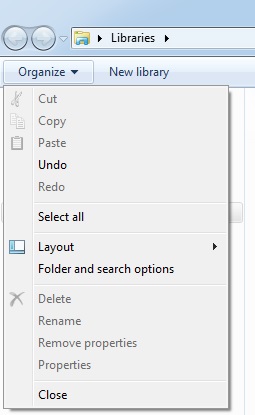
  1. Open the "Windows Explorer"
  2. Click "Organize"
  3. windows explorer option
  4. Click "View"

  5. windows explorer option
  6. Click on  "Folder and search options"
  7. Click "Do not show hidden files..."
  8. Click "Apply"
  9. Click the "OK"
  10. Done.
Read More »

How to change computer name in Windows 7

You can change the name and membership easily in your computer which using Windows 7 operating system. How to change the name is easy, but not everyone knows about it. Follow the direction below to get the details of the ways.

Seven steps  to change computer name in Windows 7
  1. Click start button

  2. computer system properties

  3. Direct your cursor to computer button and then right-click your mouse.
  4. Click “Properties”

  5. computer system properties

  6. See “Computer name”, then click “Change settings”

  7. computer system properties

  8. Click “Change...”

  9. computer system properties

  10. Change the name in “Computer name” box.

  11. computer system properties

  12. Click “OK”,  click “Apply” and click “OK”
Read More »

How to use WhatsApp in your personal computer

WhatsApp user, you can run WhatsApp application by using your personal computer now.  But, you must have installed WhatsApp application on your mobile phone and your computer must be connecting to internet to get access to WhatsApp web. You can read the steps below.

How to use WhatsApp in your personal computer

  1. Visit web.whatsapp.com
  2. whatsappweb
  3. Launch WhatsApp in your phone.
  4. Open the option and  click “WhatsApp Web”
  5. whatsappweb
  6. Direct your phone camera to scan QR Code
  7. whatsappweb
  8. Wait the scanning process and done.
  9. whatsappweb
Read More »

9 step how to convert videos into mp3

Changing the format of video files into mp3 is not difficult. Many software or programs that you can choose to help you convert video files. One such program is called XMedia Recode. Below I will describe how to convert videos into mp3 using XMedia Recode 3.0.3.4 program.

9 step how to convert videos into mp3

  1. Install program XMedia recode

  2. Launch XMedia recode program

  3. 9 langkah cara mengubah video menjadi mp3
  4. Select "Open File"

  5. Select "Audio Only"


  6. 9 langkah cara mengubah video menjadi mp3

  7. Specify the location to save mp3

  8. 9 langkah cara mengubah video menjadi mp3

  9. Click on "add job"

  10. Click on "Encode". Automatically the program will convert your files, wait a few moments to complete.

  11. Click on "Ok".

  12. It’s done.


See also; How to download XMedia Recode

Read More »

How to install the Firefox browser

Mozilla Firefox or often referred to as Firefox, a browser is the choice most people nowadays. Mozilla Firefox software is compatible computer with the operating system Windows, Linux and several other os, even to the mobile version as android.


You can download the software free Mozilla Firefox, because this software is one of the open source software. Before you install Firefox browser on your computer, then you need to download files Firefox first. You can download the software free of charge in www.mozilla.org/en-US/firefox/desktop/firefox.

Once you finish downloading it, then you can follow the instructions below to begin install it on your computer.

How to install the Firefox browser

  1. Right-click on the file you have downloaded Firefox.
  2. Click "Run as administrator"
  3. Click "Ok"


Read More »

How to install the IDM software on computer?

itu-share.blogspot.comIDM is one of much software that is very important, and I think this software must exist on your computer or laptop. This software is use to speed up the process of downloading online (download). Before you install the IDM in your computer, you have to download IDM first. You can see how to download IDM on this blog, please visit the sitemap page. After you download IDM, you can follow the following instructions to start installing IDM software.

How to install the IDM software on computer?


  1. Double-click on the file that you have downloaded IDM.

  2. After the installation window appears, click on "next"

  3. Furthermore, the license window will appear, read it first. If you agree to the license terms, click "Next"

  4. Choose a location to save the IDM installation, click on Browser. Generally will be save in drive C.

  5. Click on "Next"

  6. If you want to change the name of the IDM program on the computer, you can change it at this stage. but if you do not want to replace it continue to Click on "Next"

  7. Click on "Finish"


By clicking "finish" means the IDM installation process has been completed.

Read More »

How to install Microsoft Security Essentials easily

itu-share.blogspot.comFor those of you who use Windows OS, now you can be happy. Now you can use Microsoft Security Essentials to protect your computer from viruses, Microsoft Security Essentials is a free antivirus issued by Microsoft.

Before you install Microsoft Security Essentials, then you have to download it first. You can see how to download Microsoft Security Essentials on sitemap page, visit the sitemap page and read more. After downloading, you can follow the instructions below to begin install.

How to install Microsoft Security Essentials easily


  1. Double-click on the file you downloaded earlier.

  2. When the install tab already appears, click on "next"

  3. Read the license terms, if you agree click "I accept"

  4. Click on "Validate"

  5. Computer will process validation for a while, make sure your internet connection is connected.

  6. Click on "Finish"


After you click on "Finish", so process of installing Microsoft Security Essentials has been completed.

Read More »

How to convert RAR file to the file that you want

Before you continue reading until I finished, I will explain to you the reason for making the title "change the zip file into a file that you want". Remember, may be some time you download a file that is RAR format, could be a file contained in the zip file consists of one file or two files even more.

Moreover, it could be in the RAR files are files that are in the form of word files, excel, jpg, PNG, MP3, or APK file extension and so on. All depends on the person making the RAR file. The simple explanation, suppose you have a folder "data class", then in the folder contained video, mp3 or files you another task. Then you compress your folders into RAR, RAR then inside there are many files of different formats.

In my review below will explain how to convert WMV files into a single file, any file format that is in it. Therefore, if you want to know how to pay attention to the instructions and screenshots yes.

How to convert RAR file to the file that you want

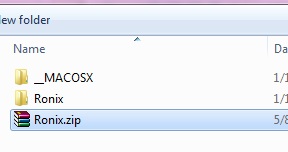
  1. Open the folder where your zip file is located.

  2. Over mouse to the RAR file, then right-click your mouse.

  3. After showing up option, then choose click "extract here".

  4. crekstrakfile

  5. Then the files will be extracting on the same folder.

  6. crekstrakfile

  7. It’s done.


If you also want to know how to change a file / folder into a RAR then please read my other articles, please see the sitemap page.

Read More »

How to delete or uninstall internet download manager on computer?

Internet download manager, Who does not know with this software. I think every Internet user who likes to download, surely they know about internet download manager (IDM). Internet download manager or commonly called IDM is one of the tools that can make it easier to download files from a variety of online on the internet. With IDM you can also speed up the download process, set the schedule downloads and so on.

You can install and remove IDM on the computer easily. To find out how to download IDM you can visit the blog contents page, and you can see how to download it. And for how to remove it from your computer can follow any instructions below;

How to delete or uninstall internet download manager on computer?

  1. Turn on your computer.

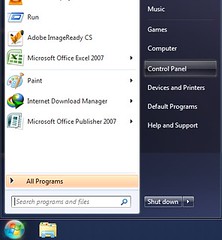
  2. Click the "start menu"

  3. Click "Control Panel"


  4. uninstallprogram

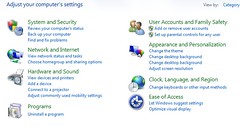
  5. Click "uninstall a program"

  6. uninstallprogram

  7. Double click on Internet download manager, and you can follow the following instructions. Usually by clicking "yes" or "ok".

  8. uninstallprogram
  9. It'S Done


Read More »

How to change JPG to PNG format?

Hi people, thanks for visiting my personal blog. Check another article by visiting sitemap page.  Anyway, have you ever been observing photo format? There is a photo file with JPG format; there is a photo file with PNG format etc.  Some time may be you need photo file with specific format, like PNG format. Nevertheless, do not have photo with PNG format, you just have JPG format. If you get experience like this, so do not worry. You can change your photo format easily.

You can use paint program on your computer to change the photos file format. To get detail how to change the photos format, you can follow the instruction below and see the screenshot.

How to change JPG to PNG format?

  1. Launch “Paint” program

  2. potolayarkompi

  3. Open your photos file.

  4. daripngkejpg

  5. Click arrowhead and over your mouse to “save as”

  6. Click PNG or other format that you want.

  7. daripngkejpg

  8. Type your file’s name

  9. Click “save”

You use paint program to;

  • Change PNG to JPEG (JPEG,JPE,JPG), BMP GIF or other format

  • Change JPEG (JPEG,JPE,JPG) to PNG, BMP , GIF or other format

  • Change BMP to JPEG (JPEG,JPE,JPG), PNG GIF or other format

  • Change GIF to JPEG (JPEG,JPE,JPG), BMP, PNG or other format


Read More »

How to use photoscape software to print formal photo on computer?

Photo with size 5 cm x 7 cm often used for make important documents like ID card etc.  Usually, some people choose go to publishing to print their photo.  Whereas they can print it by themselves in their home, as long as have a printer.  They can edit and manage the photo’s size by Photoscape software.  If you are not install the software on your computer yet, you have to install it first.

How to use photoscape software to print formal photo on computer?

  1. Launch “photoscape” software.

  2. Click “print”

  3. Set the photo size.

  4. 8 langkah cara mencetak foto ukuran 3 x 4 atau  4 x 6 di computer

  5. Drag you photos from your storage.

  6. Click “print setup” button to setting paper etc.

  7. Click “print”

  8. Clik “ok”

  9. Done.


Read More »

10 steps to lock worksheet on excel file

There are many ways to protect your work from irresponsible peoples. Likewise, your works which you stored in excel form file.  Beside you can protect your file by password to open it; you can protect your file by lock the worksheet. So, there is no one can modify your excel file. By this tricks, you can keeping share your file with partner or your coworker. Absolutely, there will be no worry about your work will modify by others. So, how to protect worksheet on your excel file? Follow the instructions step by step and screenshot below.

How to protect worksheet on your excel file?

Ten steps to protect your file on excel

  1. Open your excel file

  2. Hover your mouse to worksheet’s name, and right click on your mouse. 


  3. kunciaceltakbisadiedit

  4. Check “protect worksheet and contents of locked cells” box.

  5.  Check “select locked cells”.

  6. Check “select unlocked cells”

  7. kunciaceltakbisadiedit

  8. Type your password on “password to unprotect sheet” box.


  9. kunciaceltakbisadiedit

  10. Click “ok”

  11. Type your password again to confirm that your password want are correct. 

  12. Click “ok”

  13. Done.

The screenshot sample was showed, how to protect sheet one. You can protect sheet two, sheet three and until the end by the same ways. After you gave password on your sheet, you can save your file like usually.

Read More »

5 steps to uninstall a program on computer

Day after day, there are many variety computer programs that you install on your pc. There are a free programs and paid programs.  People have a lot of reason installed program on their computer.  There is people install because they really need the program for their jobs. But also people install computer program just for fun, play a games etc. so, you should install program that you need it only. If you have just for playing a game, you should choose suitable computer. There is a computer designed for big program, like adventure and sport games. As you know, if you Install a lot of programs on your personal computer that can affected to computer performance. Computer will run slowly. If you get a problem like this, so you should uninstall computer program which not needed for best solution.  The ways to uninstall a program is easily. For example, you can follow the instructions below, the steps to uninstall “Blackberry App…” with screenshot.

Five steps to uninstall a program on computer

  1. Click start option on your pc

  2. uninstallprogram

  3. Click “control panel”

  4. Click “uninstall a program”

  5. uninstallprogram

  6. Double-click on program’s name that you’ll uninstall, for sample “Blackberry App…” program.
  7. uninstallprogram

  8. If show a tab with question that ask you really want to uninstall the program, you should click “yes”.

  9. uninstallprogram

  10. Done.


Read More »