Showing posts with label Microsoft Word 2007. Show all posts

How to clear recent document in Microsoft Word 2007

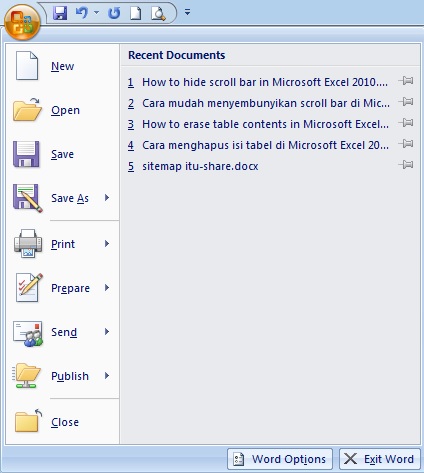
In Microsoft Word 2007, you can decide how many recent documents that you want to show. You can choose to not show any recent document or zero recent document. If you want to clear the recent document, so you have to show zero recent document. And you will get there is no recent document in Microsoft Word 2007.

How to clear recent document in Microsoft Word 2007
  1. Launch the Microsoft Word 2007
  2. Click “Microsoft office” button.
  3. excel 2007 word options
  4. Click  “Word Options”
  5. Click “Advanced”
  6. excel 2007 word options
  7. Find out  “Show this number of Recent Documents”, 
  8. excel 2007 word options
  9. Change the number of recent document to zero.
  10. Click “OK” and done.
Read More »

How to print odd or even pages on Microsoft Word 2007

There are many options to print on Microsoft Word; you can print a single page, multiple pages on a single paper, all pages, even pages only or even the odd pages only. However not everyone knows about this. As a result when trying to print the odd pages only, then they print them manually. Actually, how to print only odd or even pages is not difficult. You can read through this review to know his methods.

How to print odd or even pages on Microsoft Word 2007

  1. Open your worksheet on Microsoft Word

  2. Click on "Microsoft" icon

  3. bikinbrosurdiword

  4. Click on "Print"

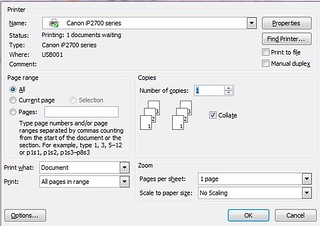
  5. On the "Print" box, you will see "All pages in range". (See under "Print what")

  6. print2hal

  7. If you want to print the odd pages only, then click the "odd pages"

  8. And select "event pages" to print the even-numbered pages.

  9. Click on "Ok"

  10. It’s done.


Read More »

How do i create 2 columns on Microsoft Word 2007?

When you create a journal research, you may need to split the text  into two columns. How to make the text into two column is simple and easy. Everyone can do it. You can do that by using Microsoft word programs. You just need follow the instructions below.

bagikertasdiword


How do i create 2 columns on microsoft word?

  1. Launch microsoft word on your pc

  2. Block the text

  3. Click “page Layout”

  4. pagelayoutmsword

  5. Click “columns”

  6. Click “Two”

  7. Finish. 
Read More »

How to create a table of contents in Microsoft Word 2007

A table of content is one of many important parts on report, book, etc.  There is no one can deny it.  A table of contents gives easily for writer and readers to understand any part of the books.   You can make it manually or automatically. By the way, can you imagine how complicated if you make it manually? If there a lot of page on your book, you will get confuse.

However, do not worry.  You can create it automatically. There is simple way to create a table of contents on Microsoft word by using table of contents feature. You can see the instruction below!

Eight steps to create table of content on Microsoft word

  1. Block the sentence that is first part. For example, click  “Metode Pengumpulan Data” sentence, then click “heading 1”.

  2. Block the sentence that is second part and until the end. 

  3. Insert blank page for Tables of content.

  4. On the blank page, click “Reference”, and click “Tables of Contents”

  5. The Tables of Contents will show automatically.

  6. Finish.


Read More »

How to protect a document from editing and copying in Microsoft Word 2007

Let your friend borrows your work and get inspiration to finish his task is a good thing. However, that will be bad thing, when your friend copy or edit your work. Then you get a negative point from your boss or your teacher because what your friend do.

That will be something you won't. You want to help your friend, but you can't let them do like that. So, how you can help your friend without worry your friend will copy or edit your work? It is easy; you just need protect your file and there is no one can edit or copy your file in Microsoft Word 2007.

How to protect a document from editing and copying in Microsoft Word 2007

  1. Launch your document in Microsoft word

  2. Click the “Review” button.

  3. Click "Protect Document"

  4. kuncidokword

  5. Click "Restrict Formatting and Editing"

  6. Check “Allow only this type of editing in the document"

  7. Change “No changes (Read only) into "Filling in forms".

  8. kuncidokword

  9. Click "yes, start enforcing protection"

  10. Type the password twice

  11. kuncidokword

  12. Click “Ok”

  13. Save your file

  14. Done
Read More »