Showing posts with label Microsoft PowerPoint. Show all posts

How to change background on Microsoft PowerPoint?

When you open PowerPoint worksheet, you will see simply background of a white a slide. The background can actually change as you like, you can change the color backgrounds be fixed such as green, yellow, red and so on. You can change the background with a gradient pattern. You can also change the background with a texture or a particular image you have. Here is how to change the background on your PowerPoint a slide.

How to change background on Microsoft PowerPoint?

  1. Click on the slide that you want to change the background. 

  2. Click on "right" on your mouse. 

  3. Click on "format background"

  4. Choose the background, as you want. 

    • If you want to turn it into a certain color then please click on "solid fill". Then on the "color" please choose your favorite color. 

    • If you want to change the color to the gradient, then click on "gradient fill".

    • However, if you want to convert into a texture or a picture, then click on "Picture or texture fill".

    • Then click "File" to select a picture from your computer. 

    • If you apply the background to all a slide then please click "apply to all".

  5. But if you want to apply it on a slide alone, just click "close"

  6. It'S Done.


Read More »

Why a video can not be played on powerpoint?

Microsoft PowerPoint is one of popular program that you can use to create a a slide presentation. You can create a presentation with the points of your reviews; insert the video, and a picture on the slide. But sometimes problems arise. When you insert a video, there is problems that the video cannot be played. Surely this could be a big problem when you know on being present.

Two possible causes make the video cannot be played on PowerPoint.

  1. There is an error in the setting when inserting the video. When you insert the video into your PowerPoint, choose "when clicked". So, the video can only be played when you click it. The solution is to delete the video, and then you insert the video into PowerPoint and choose "automatically" when the tab appears as shown below.

  2. tmbhknvideokeslide

  3. Video cannot be played on another computer, because you insert the video on PowerPoint does not exist in the new computer. So the PowerPoint the video can only be played on your computer. The solution, before you insert the video, place the video in the same folder as your PowerPoint file. You can copy or cut and paste it in the same folder. Next, you can insert the video into your PowerPoint. Moreover, when you play the PowerPoint, copy the folder! Don’t forget, copy the folder to a removable disk, not only the PPT file.


Read More »

How to insert video into PowerPoint

When you create slides for a presentation, you can insert many things into a slide. In addition, you can add the points of presentations you will give; you can also insert images, clip art, shapes, audio and even video though. With the addition of these elements will certainly make your presentation slides to be interesting, concise, and complete. It will give benefit to your work. In addition, if you have a problem with explanation skill in front of the participants, with your add and publish video on the slide, at least it can suppress your time talking in front of people. Instead, you play the video you can cover your flaws. Surely, you insert a video on a slide presentation to be relevant. Well, maybe there are some people or you may not yet know how to insert or add video to PowerPoint worksheet. For that, you can read the steps in the following review.

How to insert video into PowerPoint?

  1. Open the page you are working or PowerPoint files. 

  2. Select a slide where you want to insert a video. 

  3. Click on "insert"

  4. tmbhknvideokeslide

  5. Click on  “movie”

  6. Click on "movie"

  7. Click on "movie from file"

  8. Select videos from your computer. 

  9. Click on "Open"

  10. After appearing as a tab below then you can choose "automatically" if you want the video to play automatically. So when a slide is opened, without having you click, direct video play. However, if you want the video is playing (play) when clicked on it, and then choose "when clicked".

  11. tmbhknvideokeslide

  12. It’s Done.


Read More »

How to move a table from Excel to PowerPoint?

Microsoft Excel or commonly called Excel is one of the applications that are popular for some people to process data. Especially for tasks associated with the table data. You can create financial reports; analyze data and present data easily, by using Microsoft. Excel programs. There are many of the capabilities and advantages of Microsoft Excel. If you create a table on Microsoft Excel, you can also move and use the table data to Microsoft PowerPoint.

How to move a table from Excel to PowerPoint?

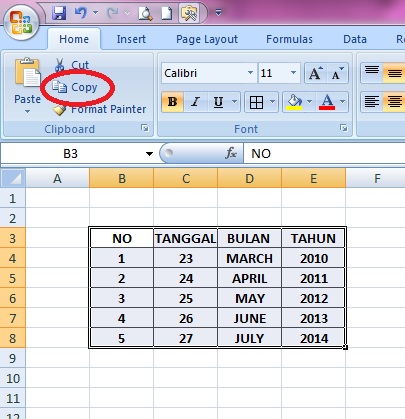
  1. Create the table and enter the data on Microsoft Excel. 

  2. After creating the data, set the font, set the font size, the thickness of the model and type of letter you want. Do not forget to add a border (frame on the data, as you want). 

  3. If completed, block your table and click "copy" (ctrl + c). 

  4. 6 langkah cara memindahkan tabel dari excel ke powerpoint

  5. Open PowerPoint; open the slide where you want to insert the table. 

  6. Then click "paste" (ctrl + v). 

  7. 6 langkah cara memindahkan tabel dari excel ke powerpoint1

  8. It’s done.


Read More »

How do I convert PowerPoint files to PDF?

Hi people, thank you for visiting my personal blog. If you want to see or read another article, then please visit the part of contents of this blog by clicking on the "Table of Contents".

Okay people, on my last post that has been review on how to protect your mail yahoo account. This time I will be on how to make dang change / convert PowerPoint files into PDF files.

Can create or convert PowerPoint files to PDF without the software?

Actually, to make or modify the PowerPoint file into a PDF file is not difficult. And you also do not need to bother to install new software on the computer. If there is Microsoft   PowerPoint a program on your computer, then you can directly create or change it.

How do I convert PowerPoint files to PDF? 

  1. Open your PowerPoint file. 

  2. Click on the "Microsoft   Office"

  3. Click on "Save as"

  4. bikinbrosurdiword
  5. Click on "PDF or XPS"

  6. Click on "Options", then on the "Publish what" please select whether you want to publish in the form of slides per page, or handout (several slides on one page). 

  7. Click on "Ok"

  8. Click on "Publish"

  9. It'S Done.


Read More »

How to create a hyperlink on Microsoft PowerPoint?

Hyperlink on Microsoft PowerPoint is a connection from one slide to another, from a slide to another file or to a web page. A hyperlink Often used to make navigation on the slide. You need to know, if how to create a hyperlink on Microsoft PowerPoint is not difficult. You can learn to create one by following the instructions below.

How to create a hyperlink on Microsoft PowerPoint?
  1. Open your worksheet on Microsoft PowerPoint

  2. If you want to create a button from an icon, then you can click on the boundary edges. However, if you want to connect to another slide text box, then please click the borders of the text. 

  3. Click on "insert"

  4. fiturinsertdippt

  5. Click on "Hyperlink"

  6. To connect to another file Click on "Existing File or Web Page". 

  7. To connect to another slide Click on "Place in this document”. 

  8. Then you can choose the slide you want to go. 

  9. Click "ok"

  10. It'S Done.
If you do not see signs of an active hyperlink to insert a column or cannot click, you repeat step two. Usually the error occurs at this stage.

Read More »

How to add slide numbers on Microsoft PowerPoint ?

Welcome back to my personal blog, people! Thanks for visiting. Now we will talk about slide Number. Slide number on Microsoft PowerPoint has a function as important as the number of pages on a document. While somebody uses a slide presentation in a discussion, the participants know the discussion topic of discussion on each slide to clear. Although the participants were unable memorize every text in the slide, the participants can remember the number slides to the topic-topic. Therefore, if the participants want to ask, the participants just need to ask shown in again slide number so and so. To get details about how to add numbers on a Microsoft PowerPoint slide, you can follow the instruction below.

How to add slide numbers on Microsoft PowerPoint ?

  1. Open the Microsoft PowerPoint program on your computer. 

  2. Click "insert"

  3. Click "Slide Number"

  4. fiturinsertdippt

  5. Check the "Slide number" to add slide numbers on each slide. 

  6. Click the "Apply to all"

  7. It'S Done.


Read More »