Showing posts with label Windows. Show all posts

How to change computer background in Windows 7

You can change the background of your computer in Windows 7 easily and anytime. You can choose a picture that has been available or you can choose a picture from your collection. How to change the background is easy.  Get the direction below!

How to change computer background in Windows 7
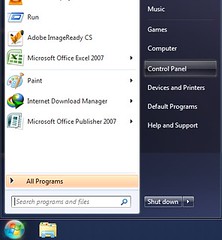
  1. Click start button
  2. uninstallprogram
  3. Click “Control Panel”
  4. Click “Change desktop background”
  5. computer control panel
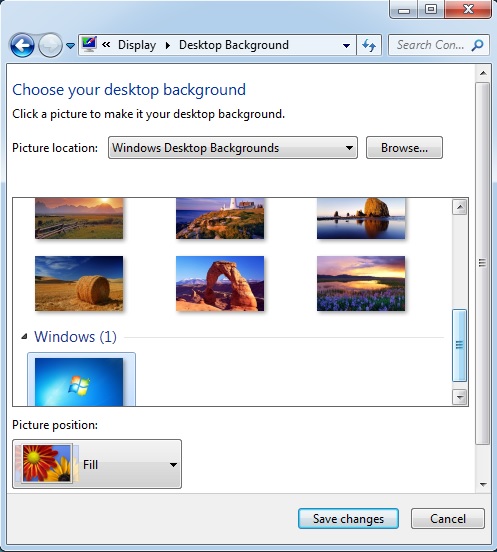
  6. Choose a picture which are available or you can browse from your computer collection.
  7. windows 7 home basic background
  8. Click “Picture position” to set the picture position.
  9. Click “Save changes”
Read More »

How to change screen resolution in Windows 7

If you use Windows 7 Home Basic in your personal computer, so you can change the screen resolution anytime you want. You can change to low or high-resolution. Definitely, high-resolution is recommended. Don’t forget, changes in the resolution will cause changes in your computer's display. How to change the resolution is easy. Follow the direction below!

Six steps to change screen resolution in Windows 7

  1. Click start menu (windows button)
  2. uninstallprogram
  3. Click “Control Panel”
  4. Click “Adjust screen resolution”
  5. computer control panel
  6. Choose the resolution that you want.
  7. computer screen resolution
  8. Click “Apply”
  9. Click “OK”
Read More »

How to delete an account in Windows 7

If you use Windows 7 operating system in your computer, so you can add or delete any account that you want. And keep the files or delete the files too. How to delete an account is too easy. Follow the direction below to get the details!

How to delete an account in Windows 7
  1. Click start menu (windows button)
  2. uninstallprogram
  3. Click “Control Panel”
  4. Click “Add or remove user accounts”
  5. computer control panel
  6. Click the account that you want to delete.
  7. computer delete account
  8. Click “Delete the account”
  9. computer delete account
  10. If you want to delete in the account that you’ll delete, so click “Delete Files”.
  11. computer delete account
  12. Then click “Delete Account”
  13. computer delete account
Read More »

How to create a new user account in Windows 7

There are many people who use computers together in their family. Every single family member can create an account for their own. Whether, standard user account or administrator account. How to create a new account in computer that using Windows 7? That’s too easy, you can follow the direction below!

Five steps to create a new user account in Windows 7
  1. Click start menu (windows button)
  2. uninstallprogram
  3. Click “Control Panel”
  4. Click “Add or remove user accounts”
  5. computer control panel
  6. Click “Create new account”
  7. computer new account
  8. Enter new account name and choose an account type
  9. computer new account
  10. Click “Create Account”
Read More »

How to adjust brightness in computer screen Windows 7

There are two ways to adjust brightness in your computer screen. You can use the button on your keyboard, or you can adjust through the control panel. Now, I will share you, about how to adjust the brightness through the control panel.

How to adjust brightness in computer screen Windows 7

  1. Click start menu (windows button)
  2. uninstallprogram
  3. Click “Control Panel”
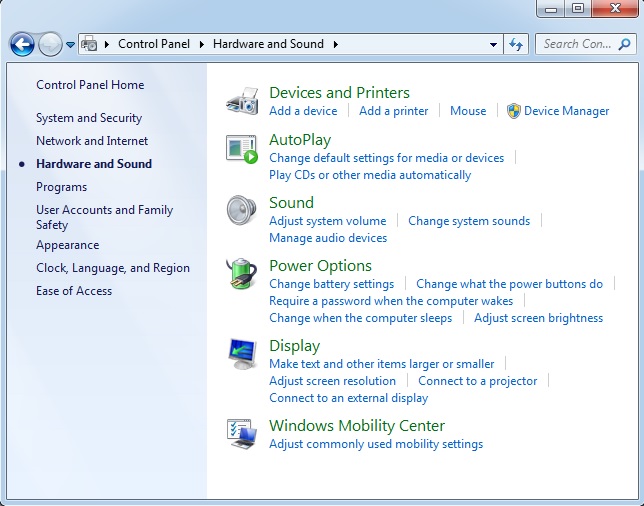
  4. Click “Hardware and Sound”
  5. computer control panel
  6. Click “Display”
  7. computer control panel hardware an sound
  8. Click “Adjust brightness”
  9. computer display
  10. Increase or decrease “Screen brightness” range.
  11. computer display
  12. Done.
Read More »

How to show hidden file in Windows 7 Home Basic

You can hide file in your computer easily without using software. And you can show it back anytime you want.  Now, you can read about how to show it below.

How to show hidden file in Windows 7 Home Basic
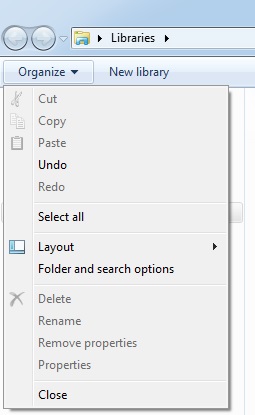
  1. Open the windows explorer
  2. vlc video
  3. Click “Organize”

  4. windows explorer option
  5. Click “View”
  6. windows explorer option
  7. Click “Show hidden files, folder….”
  8. Uncheck;
    • “Hide extensions for ….”
    • “Hide protected operating…”
  9. Click “Apply”
  10. Click “OK”
Read More »

How to accelerate cursor movement in Windows 7 computer

Sometime slow cursor movement in computer made you little annoyed and impatient. If you ever got this experience, so you have to set your cursor movement to faster. How to accelerate cursor movement is easy. You read the instruction below that applied in computer which using Windows 7 Home Basic operating system.

How to accelerate cursor movement in Windows 7 computer
  1. Click the windows button (start)

  2. uninstallprogram

  3. Click “Control Panel”

  4. Click “Hardware and Sound”

  5. computer control panel

  6. See “Device and Printer”, and click “Mouse”

  7. computer control panel hardware an sound

  8. Change the speed to fast.

  9. computer control panel hardware an sound

  10. Click “apply”

  11. Click “OK”
Read More »