Showing posts with label VLC. Show all posts

How to reset VLC media player preferences and cache files

VLC media player is one many media player that is very easy to operate it. You can set the adjustment and effect of your video. Beside that you can reset the preferences and cache files in VLC media player.  how to reset it? Read the explanation below!

How to reset VLC media player preferences and cache files

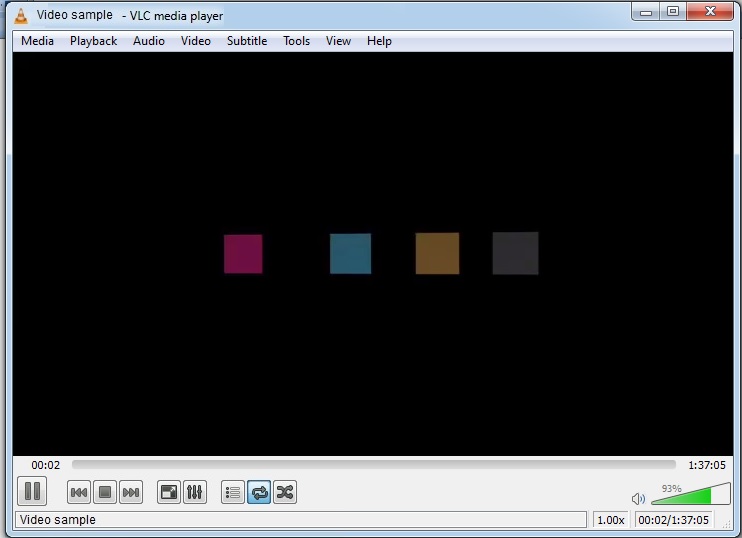
  1. Launch VLC media player
  2. VLClanguage
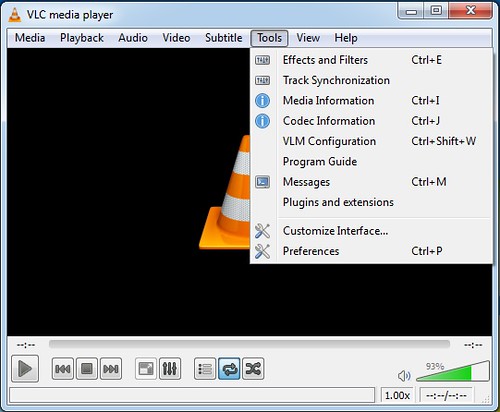
  3. Click “Tools”
  4. Click “Preferences”
  5. VLClanguage
  6. Click “Reset Preferences”
  7. VLClanguage
  8. Click “OK”
  9. vlc reset
  10. Click “Save”
  11. Done.
Read More »

How to adjust brightness in VLC media player

When you play your video by using VLC media player, you can increase or decrease the brightness range. There is a tool that you can use to set it easily. To get the details the steps, read the direction below!

How to adjust brightness in VLC media player

  1. Launch VLC media player
  2. VLClanguage
  3. Click “Tools”
  4. Click “Effects and Filters”
  5. VLClanguage
  6. Click “Video Effects”
  7. Vlc adjust video effect
  8. Check “Image adjust”
  9. Increase the brightness range
  10. Click “Close” and done.
Read More »

How to change language in VLC media player

If you are multiple languages skilled, so you can change the primary language in VLC media player into your language. How to change the language is too easy. You can read the instruction below to get the details.

How to change language in VLC media player

  1. Launch VLC media player
  2. VLClanguage
  3. Click “Tools”
  4. VLClanguage
  5. Click “Preferences”
  6. Change the menus language to your language.
  7. VLClanguage
  8. Done.
Read More »

How to take a snapshot in VLC media player

VLC as media player provide many feature that very useful. Not only useful for playing video, but you can take a snapshot of your video that you played too. How to take the snapshot is easy. You can follow the instructions below.

  1. Play your video by using VLC media player

  2. Pause the play back.

  3. Click on “Video”

  4. vlc video

  5. Click on “Take Snapshot”

  6. vlc video

  7. Then the snapshot stored in your picture libraries.

  8. vlc video


Read More »