Showing posts with label Microsoft Excel 2007. Show all posts

How to erase table contents in Microsoft Excel 2007

There are many reasons why you or other people want to erase table content.  You can erase table contents manually by erasing one by one or create new table.  But, if there are really many tables, it will take a lot of time. There is a way to erase easily and quickly. Read the instruction below!

How to erase table contents in Microsoft Excel 2007

  1. Block the tables.
  2. excel tabel klik kanan
  3. Lets cursor stay on the tables that you’ve blocked.
  4. Right-click on the mouse.
  5. Click “Clear Contents”
  6. excel tabel klik kanan
  7. Done.
Read More »

How to convert columns table to rows in Microsoft Excel 2007

When you process your data in Microsoft Excel 2007, sometime you need to convert your columns table to rows or otherwise. Usually, the beginner who does not know how to convert it, they will move one by one table or create it manually. Absolutely, this is needed more time.

There is easy way to convert your column table or otherwise. You can copy your data and use “paste special”.  Read the instruction below to get the details.

How to convert columns table to rows in Microsoft Excel 2007

  1. Block your table that you will change

  2. Copy the table that you have blocked.

  3. excel tabel copy

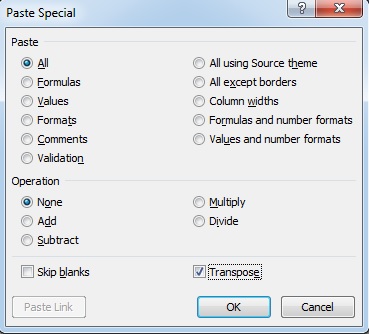
  4. Click “Paste special”

  5. excel tabel copy

  6. Check “Transpose”

  7. excel tabel copy

  8. Last, click “OK”
Read More »

How to protect an excel file with a password so cannot be edit

There are many ways to protect your work.  Protect your file from other people who are not responsible. So even on the results of your work stored in the form of an excel file. In addition, you can protect the file with a password to open it, you also protect your files with protecting the worksheet, in this way others can still see the results of your job, but there is no one can change your work. By using this trick, you can share with friends or colleagues, without fear that other will modify your work. Next, how to protect your worksheet? Follow the reviews below to get details, and your right to know how to protect your worksheet.

How to protect an excel file with a password so cannot be edited?

  1. Open your Excel worksheet.

  2. Mouse over the sheet name below, and then right click your mouse.

  3. kunciaceltakbisadiedit

  4. Check the "protect your worksheet contents of locked cells"

  5. Check the "select locked cells"

  6. Check the "select unlocked cells"

  7. kunciaceltakbisadiedit

  8. Enter a password  on the "password to unprotect sheet".

  9. Click "OK".

  10. Will then be prompted to enter the password again (same as the password you type before)

  11. Click "OK".

  12. It’s Done.


The example on the screenshot is an example to protect the sheet 1. You can protect the sheet 2, 3 and so on in the same way. Following a password on sheet, you can save the file as usual.

Read More »